
How to Create and Submit a Stock Reconciliation on Takealot (Step-by-Step Guide)
If you’re a Takealot seller, doing regular stock reconciliations (recons) is essential to protect your business and recover lost money. In this guide, I’ll walk you through how to create and submit a stock recon—and explain why it’s so important.
What is a Stock Reconciliation?
A stock reconciliation (or “recon”) is the process of checking your stock against Takealot’s records to identify:
- Missing stock
- Damaged items
- Incorrect stock quantities
If there are discrepancies, you can submit a recon to claim your money back.
Why Stock Recons Are Important
Many sellers don’t realise how much money they can lose if they don’t do recons regularly.
Key Benefits:
Recover Lost Money
If Takealot loses or damages your stock, you can submit a recon and get reimbursed.
Identify Errors Early
Catch stock issues before they become bigger problems.
Protect Your Profit Margins
Every missing item = lost income. Recons help you stay profitable.
Improve Inventory Accuracy
Keeps your stock records aligned with Takealot’s system.
Better Business Control
You stay in control of your stock instead of relying blindly on the system.
Step-by-Step: How to Create a Stock Recon
Download Template & Watch Full Tutorial
To make your stock reconciliation process faster and easier, we’ve created helpful resources for you:
Download Our Excel Recon Template
Use our ready-made Excel template to quickly create and submit your stock recon.
Click here to download the template
Watch the Step-by-Step YouTube Tutorial
Prefer a visual guide? Watch our full walkthrough where we show you exactly how to create and submit your stock recon.
Tip: We recommend following the video while using the template for the best results.
Step 1: Log into Seller Portal
Go to your Takealot Seller Portal and log in.
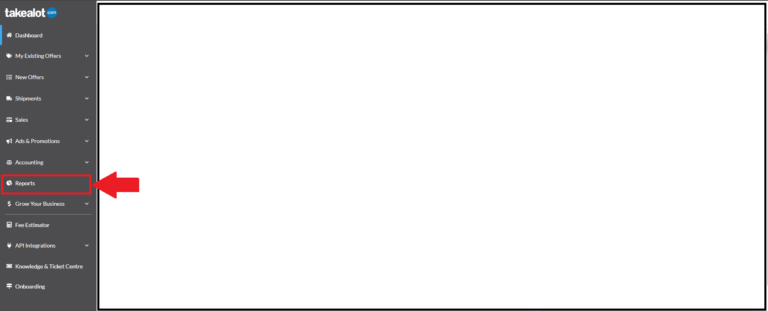
Step 2: Go to Reports
Navigate to the section where you can download reports.
Step 3: Download the Required Reports
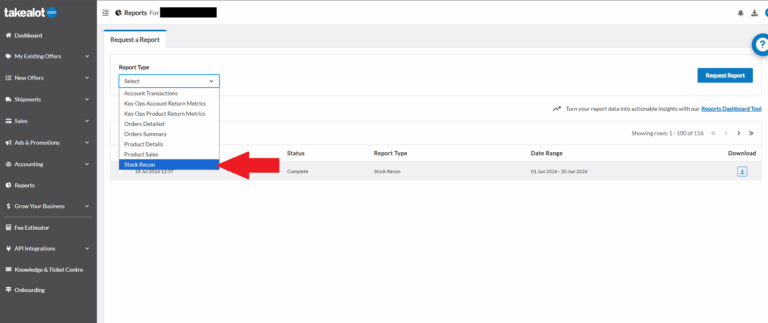
In your Seller Portal, go to the Reports section and follow these steps:
- Navigate to Report Type
- Select Stock Recon
- Choose the year and month you want to reconcile
- Under Delimiter, select Comma (,)
- Click Request Report
Once requested, the report will be generated and made available for download. This can take 1–5 minutes, so refresh your page if needed.
When the report is ready, download the file and open it in Excel to begin your reconciliation.
Step 4: Open the Report in Excel
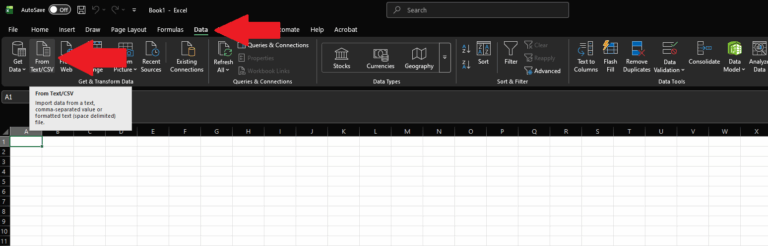
To correctly open your Stock Recon report in Excel, follow these steps:
- Open Microsoft Excel
- Navigate to the Data tab
- Click From Text/CSV
- Select your downloaded Stock Recon file and click Import/Open
- In the preview window, ensure the Delimiter is set to Comma (,)
- Click Load
Your report will now be properly formatted in Excel and ready for you to begin your reconciliation.
Tip: Watch the YouTube video for a full step-by-step visual guide.
ADD LINK
Step 5: Create Your Recon Document
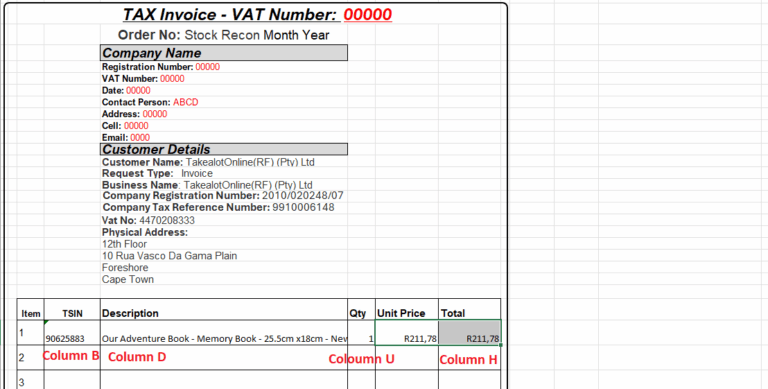
Use a spreadsheet (Excel works best) to create your reconciliation document.
Tip: Download our ready-made template to make this step quick and easy.
Your recon should include the following (from your downloaded report):
- TSIN (Column B)
- Product Title (Column D)
- Quantity (Column U)
- Total Amount (Column H)
Also make sure to:
- Add your company details
- Include Takealot’s details
- Keep your layout clear, neat, and easy to read
A well-structured recon makes it easier for Takealot to review and approve your claim faster.
How to Submit Your Stock Recon
Step 7: Submit a Seller Support Ticket
Go to your Seller Portal and create a Support Ticket.
Under Seller Query Types, select:
- Stock Reconciliation
- I need to be reimbursed for missing stock
Step 8: Attach Your Recon Files
Upload all required documents as evidence:
- Your completed recon spreadsheet (Excel invoice/template)
- The original Stock Recon report downloaded from Takealot
Make sure your files are clear, accurate, and easy to review. This will help speed up the approval process.
Step 9: Submit and Monitor
Submit your ticket and keep an eye on it for updates.
Takealot may request additional information, so be sure to respond promptly to avoid delays.
Important: If you submit your recon late, Takealot may charge an additional fee.
Once your recon (invoice) is approved, the funds will be paid into your seller account.